














DSE & Ergonomics: Healthy Workstations for Office & Hybrid Teams
Last updated: 7 September 2026
Author: Jade Anderson, Senior Reporter, UK-Safety.News
Reading time: about 12 minutes
What this guide covers
- Why DSE matters
- The law: the DSE Regulations 1992 and L26
- Who is a DSE user
- The five employer duties
- The workstation checklist
- The assessment process, step by step
- Laptops, tablets and hot desking
- Home and hybrid working
- Eye tests and spectacles
- Posture, movement and breaks
- Workload and wellbeing
- A worked example
- Common mistakes
- Frequently asked questions
- Further resources
Why DSE matters
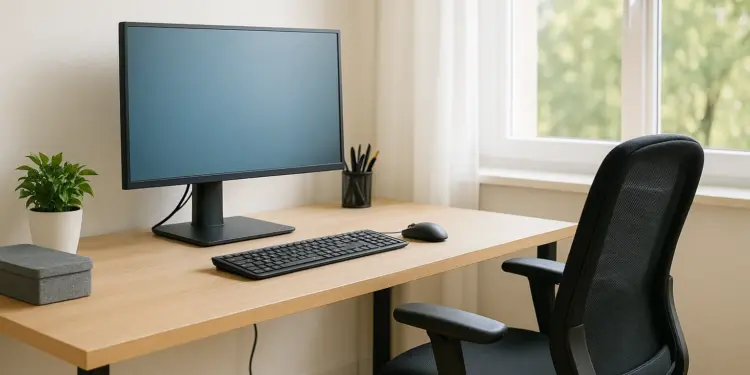
Screen work looks harmless, but the aches that build up at a badly arranged desk are among the most common reasons people struggle at work. HSE’s statistics for 2024/25 estimate that 511,000 workers in Great Britain were suffering from a work related musculoskeletal disorder, new or long standing, and that 7.1 million working days were lost to those conditions in the year.
DSE problems are almost entirely preventable, and the fixes are cheap: a chair adjusted properly, a screen raised to eye height, a separate keyboard for a laptop, a habit of standing up every hour. The difficulty is doing it consistently for every user, including the ones who now work from a kitchen table three days a week.
The law: the DSE Regulations 1992 and L26
The Health and Safety (Display Screen Equipment) Regulations 1992 came into force on 1 January 1993 and were amended by the Health and Safety (Miscellaneous Amendments) Regulations 2002. They sit under the Health and Safety at Work etc. Act 1974 and alongside the Management of Health and Safety at Work Regulations 1999. HSE’s guidance on them is L26, Work with display screen equipment; the leaflet for staff is INDG36 and the standard assessment form is checklist CK1. All three are free.
“Display screen equipment” means any alphanumeric or graphic display screen, so monitors, laptops, tablets and smartphones are all included. A “workstation” is the screen plus everything around it: keyboard, mouse, chair, desk and the immediate environment. The Regulations do not apply to drivers’ or machinery cabs, DSE on board transport, DSE mainly for public operation, portable systems not in prolonged use, calculators, cash registers and similar small displays, or window typewriters.
| Regulation | What it requires |
|---|---|
| Reg 1: Interpretation and application | Defines DSE, user, operator and workstation, and sets out the exclusions above |
| Reg 2: Analysis of workstations | A suitable and sufficient assessment of each user’s workstation, reviewed when no longer valid or after a significant change, with risks reduced so far as reasonably practicable |
| Reg 3: Requirements for workstations | Workstations must meet the minimum requirements in the Schedule (equipment, environment, software interface) |
| Reg 4: Daily work routine of users | Work planned so that DSE work is periodically interrupted by breaks or changes of activity |
| Reg 5: Eyes and eyesight | An eye and eyesight test on request, at the employer’s expense, and special corrective appliances where needed for DSE work |
| Reg 6: Provision of training | Health and safety training in the use of the workstation, repeated when it is substantially modified |
| Reg 7: Provision of information | Users and operators told about the risks, the measures taken and their entitlements |
The duties fall on the employer; see the FAQ for agency and self employed workers.
Who is a DSE user
The Regulations define a user as an employee who habitually uses DSE as a significant part of normal work. HSE’s plain language test is that the Regulations apply to workers who use DSE daily, for continuous periods of an hour or more. L26 adds that a user normally works in spells of an hour or more at a time, more or less daily, has to transfer information quickly to or from the screen, and meets at least one of: the job needs high concentration, they depend on DSE to do it, they have little choice about using it, or they need particular training or skills to use it.
In practice almost everyone with an office job is a user, as are receptionists, call handlers and anyone whose day is spent on a laptop. Those who glance at a screen briefly, such as a driver checking a handheld terminal, are not. Record the decision for each role, and where it is borderline treat the person as a user.
The five employer duties
- Analyse workstations and assess the risks. Look at the whole workstation, the job, and any special requirements of the individual, such as a disability or pregnancy. The assessment is of the person at the desk, not the desk alone.
- Reduce the risks the assessment finds. Adjust, replace or add equipment, change the layout, and check that it worked. Workers cannot be charged for equipment they need.
- Plan work so there are breaks or changes of activity. The law sets no fixed interval. HSE’s advice is short breaks taken often: 5 to 10 minutes every hour rather than 20 minutes every 2 hours. Phone calls, meetings and filing count. Where the job has none, plan rest breaks in and let people choose when to take them.
- Provide an eye test when a user asks, and special spectacles if needed. See below.
- Provide information and training. The risks of DSE work and how to avoid them, how to set up and adjust the workstation, how to build in breaks, how to report a problem, and how to ask for an eye test. Repeat the training when the workstation changes substantially.
The workstation checklist
HSE’s checklist CK1 works through the workstation in seven sections. The table condenses it into what to check and what right looks like. Use it as a training aid as well as a form: once people understand why each item matters, most fix their own desks.
| Area | What to check | Good position or condition |
|---|---|---|
| Chair | Stable; seat height, back height and tilt adjust and work; castors or glides; adjusted for the person | Small of the back supported; forearms horizontal at the keyboard; gap of 2 to 3 cm between seat front and back of knee; feet flat on the floor or a footrest |
| Screen | Characters clear; image free of flicker; brightness and contrast adjustable; swivels and tilts; free from glare; window coverings adequate | Top of screen level with the eyes, about an arm’s length away, directly in front; side on to windows |
| Keyboard | Separate from the screen; tilts; comfortable keying position; legible characters; good technique | Just below elbow height and central, with space in front to rest the hands; wrists straight, soft touch |
| Mouse | Suitable for the task; close to the user; wrist and forearm supported; speed and settings suit the user | In line with the elbow, within easy reach, straight wrist, relaxed grip |
| Software | Suitable for the task; user trained | Software the user works fluently, with adjustable font size and colours |
| Desk | Large enough for all equipment and papers; everything within reach; surfaces free from glare | Frequently used items within forearm reach; document holder beside the screen; enough legroom |
| Environment | Room to change position; lighting, temperature, air and noise comfortable | Lighting that suits both screen and paper; no bright source behind or in front of the screen |
| Final questions | Anything missed; discomfort attributed to DSE; user told about eye tests; regular breaks taken | Every problem answer gets an action, an owner and a date |
The assessment process, step by step
- Identify users. Apply the hour a day test to every role, including hybrid, home based, mobile and agency staff.
- Choose a method. For most people a trained self assessment using CK1 or an equivalent online form is acceptable. HSE is explicit that software is not an assessment on its own: a trained person must check the answers, feed back and make sure actions are done.
- Train first, assess second. A self assessment by someone who does not know what a good position looks like produces a clean form and an unchanged desk.
- Assess the workstation and the person. Cover home and office setups for hybrid workers. Ask about existing discomfort, pregnancy or disability.
- Act on the findings. Most actions are adjustments made on the spot. Some need kit: a riser, keyboard and mouse, footrest, chair or second screen. Confirm it arrived and is being used.
- Escalate the hard cases. Persistent pain, or a problem standard adjustments do not solve, goes to occupational health or a qualified ergonomist.
- Record and review. Keep the assessment, actions and completion dates. Review when the assessment may no longer be valid or after a significant change: a new workstation or starter, a move, new equipment or software, more screen time, a change in health, or a report of discomfort.
Laptops, tablets and hot desking
The Regulations exclude “portable systems not in prolonged use”, a phrase written for the occasional laptop of the early 1990s. L26 is clear that a laptop or handheld device used habitually as a significant part of normal work is covered, and that is now most laptops. Some Schedule requirements, such as a separate keyboard, cannot be met by the device itself, so the assessment has to reduce the risk another way.
A laptop on its own forces a choice between a screen that is too low and a keyboard that is too high. INDG36 says users should be encouraged, whenever possible, to use a docking station or firm surface and a full sized keyboard and mouse. Issue a keyboard, mouse and riser as standard to every laptop user. For mobile workers, limit sessions on the laptop alone and make sure a properly set up workstation is waiting at base.
Hot desking
HSE’s position is that workers should carry out a basic risk assessment when they change desks regularly. So every desk in the pool must be adjustable and complete (chair, monitor arm or riser, keyboard, mouse), users must be trained to adjust a desk in two minutes and expected to do so, and a set up card should sit at every position. Where someone needs specific equipment, give them a fixed desk or a labelled chair.
Home and hybrid working
HSE states that the DSE Regulations apply to workers who work at home on a permanent or long term basis, and to those who routinely split their time between the workplace and home (hybrid working). They do not apply to people who use DSE at home only occasionally or for brief periods. So the distinction is between temporary or occasional home working, where the general duty to manage risk applies but a formal home workstation assessment is not expected, and long term or routine home working, where the full DSE duties apply exactly as in the office.
The duties are the same as in the office: assess both setups, reduce the risks, provide equipment free of charge, plan breaks and train. A home visit is not normally needed; a trained self assessment with photographs is adequate for most people. HSE notes that workers may not need office type furniture at home to achieve a good posture: a dining chair with a lumbar cushion and a laptop raised on books can beat an unadjusted office chair. Where the home setup cannot be made acceptable, provide equipment, change the pattern of work, or bring the person to a base more often. Add three home checks: is there a dedicated space, is the person working from a sofa or bed, and are they taking breaks or working through.
Eye tests and spectacles
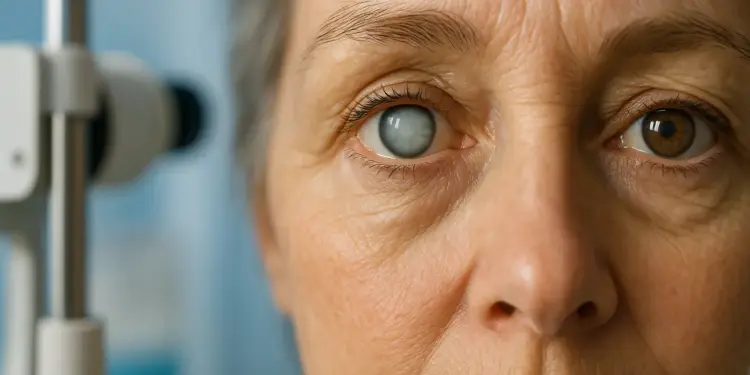
Regulation 5 gives every DSE user the right to an eye and eyesight test, on request, paid for by the employer: a full test by an optometrist or doctor, including a vision test and an eye examination. Users can ask before they become users and for further tests at the intervals the optometrist recommends. They may also decline.
If the test shows that the user needs spectacles specifically for the distance at which the screen is viewed, the employer must pay for a basic pair of frames and lenses. If the user’s normal spectacles are adequate for screen work, the employer does not have to pay. A voucher or fixed contribution is fine provided it covers a basic pair.
The entitlement belongs to all users, not only those who complain of eye strain, so tell everyone how to apply and keep the process to a one page form and a named approver. Screen work does not damage eyesight, but it can reveal uncorrected defects and cause temporary fatigue and headaches, which good lighting, the right screen distance and regular breaks reduce.
Posture, movement and breaks
The best posture is the next one: a perfectly adjusted chair held for eight hours still produces stiffness.
Set up. Sit back with the lower back supported, shoulders relaxed and forearms horizontal. Screen directly in front, an arm’s length away, top level with the eyes. Keyboard and mouse central and close, wrists straight. Feet flat on the floor or a footrest.
Move. Stand for phone calls. Walk to a colleague instead of messaging. Take the 5 to 10 minute break every hour away from the screen and use it to stand, stretch and look into the distance. Sit stand desks only help people who raise them, so they need the same training and follow up as any other kit.
Report early. Aches addressed in the first week usually resolve with adjustments; aches endured for months often need clinical help and time off.
Workload and wellbeing
L26 lists mental stress alongside musculoskeletal disorders and visual fatigue as a health risk of DSE work. Ergonomics means fitting the work to the person, including its demands, not only the furniture. People under time pressure skip breaks, hunch forward, grip the mouse harder and work through pain; remote workers who feel they must be visibly online do not step away. HSE’s Management Standards for work related stress are the framework here. Ask about workload in the DSE assessment, and treat a team where everyone skips breaks as a management finding, not individual failings.
A worked example
A regional insurance broker with 60 staff moves to hybrid working. Everyone is issued a laptop; office desks become a hot desk pool of old fixed height chairs and monitors on their stands. The last DSE assessments were done three years earlier and are not repeated.
A claims handler works at home three days a week with the laptop flat on the dining table, and in the office on whichever desk is free. Within four months she has neck and shoulder pain and pins and needles in her right hand. Her team leader suggests she sit up straighter. Six months later she is signed off for five weeks with a GP letter referring to a work related upper limb disorder. A grievance and a personal injury claim follow. The broker has no assessment record for either setup, no training record, and no evidence she was told about eye tests or breaks.
The process in this guide would have identified her as a user when the laptops were issued; had her self assess both locations after training, flagging the flat laptop on day one; issued a riser, keyboard and mouse and standardised the office pool; treated her first report of pain as a review trigger with an occupational health referral within a fortnight; and left a record of each step. The equipment would have cost less than one week of her absence.
Common mistakes
- Assessing the desk, not the person. A facilities tick sheet for every desk does not satisfy Regulation 2.
- Software with nobody behind it. Self assessments no trained person reads or acts on.
- Forgetting home workers. Office only assessments for people who spend most of the week elsewhere.
- Laptops on their own. No separate keyboard, mouse or riser.
- Hot desks that cannot be adjusted, or can be, but nobody has been shown how.
- Treating eye tests as a perk behind a process so awkward that nobody applies.
- Ignoring the first report of discomfort. The cheapest intervention is the earliest one.
- No review triggers. One assessment at induction and never again.
- Buying kit as the only answer. An expensive chair that is never adjusted helps nobody.
Frequently asked questions
How often do we have to repeat DSE assessments?
The Regulations set no fixed interval. Review when there is reason to suspect the assessment is no longer valid or after a significant change: a new or moved workstation, new equipment or software, more screen time, a change in health or a report of discomfort. An annual self assessment on top is good practice, not a legal requirement.
Does the law say how long a screen break should be?
No. Regulation 4 requires work to be planned so DSE work is periodically interrupted by breaks or changes of activity and leaves the timing to the employer. HSE suggests 5 to 10 minutes every hour rather than 20 minutes every 2 hours. Other work away from the screen counts.
Do we have to pay for an employee's glasses?
Only where the eye test shows they need spectacles specifically for the screen viewing distance and their normal glasses will not do. Then you pay for a basic pair of frames and lenses; the employee pays for any upgrade. If their ordinary prescription is fine for screen work, you do not have to contribute.
Someone works from home two days a week. Do we need to assess their home setup?
Yes. HSE states that the Regulations apply to workers who routinely split their time between workplace and home, and that assessments should cover both setups. A trained self assessment with photographs is usually enough, and any equipment it shows is necessary must be provided free.
Are agency and self employed workers covered?
The Regulations distinguish “users” (employees) from “operators” (self employed people who habitually use DSE as a significant part of their work). A host that provides the workstation must make sure it meets the Schedule and give operators information. Eye tests and training for an agency worker rest with the agency as employer, but the host is usually best placed to do the assessment, so agree in writing who does what.
Further resources
- HSE: Working safely with display screen equipment
- HSE: Eyes and eyesight testing
- HSE: Working with DSE at home
- HSE: CK1 DSE workstation checklist
- HSE: L26 Work with display screen equipment
- legislation.gov.uk: Health and Safety (Display Screen Equipment) Regulations 1992
- UK-Safety.News: A Complete Guide to Reporting Safety Incidents
- UK-Safety.News: Useful Documents
This guide is general information for Great Britain and is not legal advice. Check the current HSE guidance before acting on a specific case.
About the author: Jade Anderson specialises in turning regulations into practical steps for supervisors and safety leads.